
HTML Imports - A technology that makes up Web Components
by Eiji Kitamura
This article is a crosspost of an article on webcomponents.org.
As explained in previous articles, by using Template, Shadow DOM, and Custom Elements, you can build modular UI components. However, loading the HTML, CSS, and JavaScript for each of those components separately is inefficient.
Resolving dependencies is also no easy task. Think back to jQuery UI or Bootstrap: you had to include separate tags for various resources like JavaScript, CSS, and web fonts as needed. Especially with Web Components, where each custom tag is meant to be treated as a standalone component, it's easy to see how quickly things can get complicated.
HTML Imports is what allows you to bundle and load these resources in a single HTML file.
How to Use HTML Imports #
To load bundled resources into HTML, add a link tag with its rel attribute set to import and its href attribute pointing to the URL of the resource you want to load. For example, if you want to load an HTML file called component.html from index.html, write it like this:
index.html
<link rel="import" href="component.html" >Just like regular HTML, an imported HTML file can contain any resources you need, such as JavaScript, CSS, and web fonts:
component.html
<link rel="stylesheet" href="css/style.css">
<script src="js/script.js"></script>doctype, html, head, and body tags are not required. The HTML written in the imported document is parsed as soon as it is loaded, and if there is JavaScript among its linked subresources, it will be executed immediately.
Execution Order of Resources #
So, if JavaScript is written in both the parent HTML and the imported child HTML, which one runs first? Understanding this is very important, as an unexpected execution order can prevent things from working as intended.
When loading, HTML Imports behaves similarly to defer on a script tag. For example, in the code below, when index.html loads component.html, it executes everything inside component.html, including its scripts, before executing the next script in index.html.
index.html
<link rel="import" href="component.html"> // 1.
<title>Import Example</title>
<script src="script3.js"></script>        // 4.
component.html
<script src="js/script1.js"></script>     // 2.
<script src="js/script2.js"></script> // 3.- Load
component.htmlon the first line ofindex.html, and wait forcomponent.htmlto finish processing. - Execute
script1.json the first line ofcomponent.html. - After
script1.jsfinishes executing, executescript2.json the second line ofcomponent.html. - After
script2.jsfinishes executing, executescript3.json the third line ofindex.html.
You can also add the async attribute to link[rel="import"]. When you add async, just like with the script tag, the document continues parsing without waiting for processing to complete. If your code does not depend on a specific execution order, adding async may help speed up the overall page load time.
You Cannot Cross the Origin Boundary #
Due to security restrictions, HTML Imports cannot cross origin boundaries. In other words, you cannot normally import resources from http://example.com/ into http://webcomponents.org/. (An origin refers to an exact match not just of the domain, but also the protocol like http / https, subdomains, and port numbers.)
To bypass this restriction, the server hosting the imported resource must support CORS (Cross Origin Resource Sharing). For more details on CORS, read this article (in English; translations welcome!).
window and document #
Earlier, I mentioned that importing an HTML file loads its content and executes its JavaScript, but the HTML written there won't automatically be rendered in the browser. You need to give it a hand using JavaScript.
When moving HTML from one document to another using JavaScript, you need to pay attention to what document refers to in each context.
Actually, both refer to the importing (parent) HTML's document. In terms of the sample code above, that means both the JavaScript in component.html and the JavaScript in index.html refer to index.html's document. How, then, do you reference the imported document's document?
To get component.html's document from index.html, reference the link tag's import property:
index.html
var link = document.querySelector('link[rel="import"]');
link.addEventListener('load', function(e) {
  var importedDoc = link.import; // document of component.html
});
If you want to get component.html's document from within JavaScript inside component.html, reference document.currentScript.ownerDocument:
component.html
var mainDoc = document.currentScript.ownerDocument;
// mainDoc refers to component.html's document
If you are using webcomponents.js (renamed from platform.js), use document._currentScript instead of document.currentScript:
component.html
var mainDoc = document._currentScript.ownerDocument;Adding code like this near the beginning of your JS will let you handle it transparently via document._currentScript:
document._currentScript = document._currentScript || document.currentScript;Performance When Using HTML Imports #
As mentioned earlier, the advantage of HTML Imports is that it helps keep components organized, but conversely, this can also increase the number of resources being loaded. A few concerns naturally arise here.
Dependency Resolution #
One concern is dependency resolution. For example, what happens if multiple imported HTML files each load jQuery?
In fact, if you load jQuery directly using a script tag from the imported HTML files, it will result in two network requests, and the script itself will also execute twice.
index.html
<link rel="import" href="component1.html">
<link rel="import" href="component2.html">
component1.html
<script src="js/jquery.js"></script>component2.html
<script src="js/jquery.js></script>While it's not impossible to manage URLs manually to prevent duplicate loading, writing that kind of boilerplate is tedious. HTML Imports solves this automatically.
Unlike script tags, HTML Imports automatically deduplicates requests for the same resource, ensuring it is fetched and executed only once. In the jQuery example above, instead of calling the jQuery resource directly, wrapping it in an HTML file that contains the script tag restricts both loading and execution to a single time:
index.html
<link rel="import" href="component1.html">
<link rel="import" href="component2.html">
component1.html
<link rel="import" href="jquery.html">component2.html
<link rel="import" href="jquery.html">jquery.html
<script src="js/jquery.js"></script>By doing this, js/jquery.js will only be loaded and executed once.
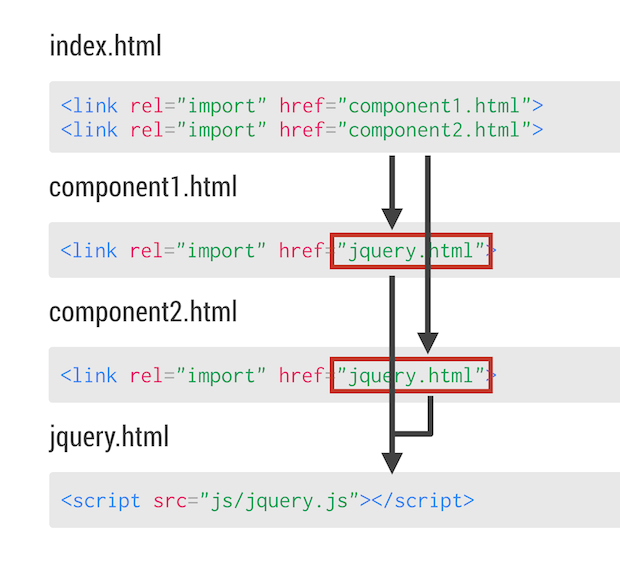
However, we've introduced another concern: wrapping it in HTML adds an extra network request. Can we do something about this?
A tool called Vulcanize solves this problem.
Bundling Network Requests #
Vulcanize is a tool that bundles multiple HTML resources into one to reduce network requests. You can install it via npm and run it from the command line. Grunt and Gulp tasks are also available, making it convenient to integrate into your build process.
To resolve dependencies starting from index.html in the sample code above:
$ vulcanize -o vulcanized.html index.htmlRunning the above from the command line resolves dependencies and generates an aggregated HTML file called vulcanized.html.
For more details on Vulcanize, see here.
Using with Template, Shadow DOM, and Custom Elements #
Now let's look at an example of using HTML Imports in combination with Template, Shadow DOM, and Custom Elements, based on the code we've built in previous articles.
Template allows you to define an element's contents declaratively. Shadow DOM allows you to encapsulate styles, IDs, and classes inside an element. Custom Elements lets you use custom tags with arbitrary tag names.
By combining these with HTML Imports, you can make a custom component available on your web page simply by adding a single tag.
x-component.html
<template id="template">
  <style>
    ...
  </style>
  <div id="container">
    <img class="webcomponents" src="http://webcomponents.org/img/logo.svg">
    <content select="h1"></content>
  </div>
</template>
<script>
// This element will be registered to index.html
// Because `document` here means `document` in index.html
var XComponent = document.registerElement('x-component', {
  prototype: Object.create(HTMLElement.prototype, {
    createdCallback: {
      value: function() {
        var root = this.createShadowRoot();
        var template = document.querySelector('#template');
        var clone = document.importNode(template.content, true);
        root.appendChild(clone);
      }
    }
  })
});
</script>
index.html
  ...
  <link rel="import" href="x-component.html">
</head>
<body>
<x-component>
  <h1>This is Custom Element</h1>
</x-component>
...
Because document in the imported HTML (x-component.html) refers to that of the importing index.html, it should work cleanly without any special workarounds.
Browser Support Status #
As of December 2014, HTML Imports is supported in Chrome, Opera, and behind a flag in Firefox (Update: Mozilla announced that they will not ship HTML Imports, pending consideration alongside ES6 Modules). Check chromestatus.com or caniuse.com for the latest support status. You can also use webcomponents.js (renamed from platform.js) as a polyfill.
Summary #
What did you think? If you'd like to learn more about HTML Imports, the following resources are also helpful: